Adventure Mode: a story your lesson can carry
When students see Adventure Mode, lesson-scoped resume, and the assignment switch.
- Best for
- Classroom teachers
- Typical use
- 5 minutes
Search the guide
Type one or more words to search every chapter.
Adventure Mode turns a lesson into a short interactive story. Students make choices, answer questions drawn from your source material, and earn XP as they go. It is optional, and as of the August 2026 update it only appears when you want it to.
If you have not built a lesson yet, start with Prepare a lesson.
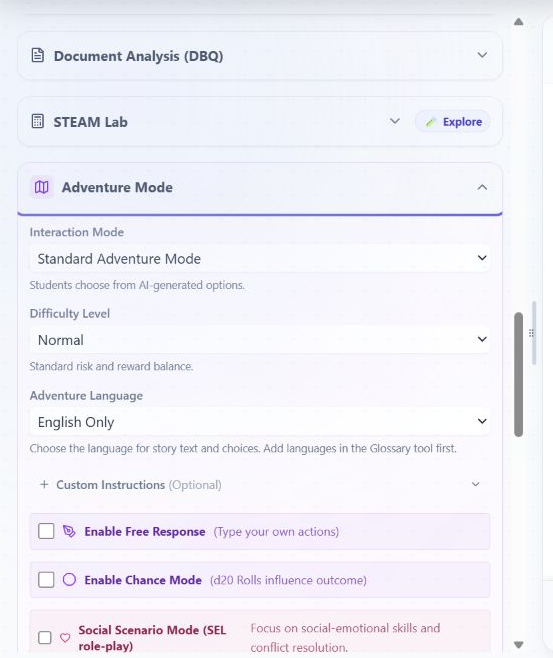
These are the teacher-side controls. Students never see this panel; they see the story it produces.
When students see it
Two things must both be true before the Adventure panel appears for students:
| Condition | Where you control it |
|---|---|
| You left Adventure on for this assignment. | Project Settings has an "Include Adventure in this assignment" switch. Turn it off and the panel disappears from the student view entirely. |
| There is a lesson to build a story from. | Adventure needs source material or an analysis to work with. An empty workspace does not advertise it. |
The switch defaults to on, so lessons you shared before this update behave exactly as they did.
Resume is tied to the lesson now
A student's saved adventure belongs to the lesson it was made from. If they open a different lesson, they are not offered "Resume Adventure" from last week's story, and choosing an old save from a different lesson politely refuses rather than pulling them out of today's work. This closes a real classroom problem: students quietly resuming a past adventure instead of attending to the current lesson.
One honest note: adventures saved before this update carry no lesson tag, so the very first resume after the update may still offer an older story. Every save made from now on is tagged.
Language
Adventure has its own language control with three settings: the lesson language only, the lesson language with a translation, or a multilingual mix. When a translation is included, the second language now follows your Universal Settings translation choice instead of always being English. See Universal Settings for how that control works.
Practical guidance
- Graded work: turn the assignment switch off. Adventure is practice and engagement, not assessment.
- XP worries: XP earned in an adventure spends in the same place as all other XP. Removing the adventure does not take away anything a student already earned.
- Teachers in family mode see the Adventure panel pre-expanded in the sidebar rather than the student presentation.
Setting up an adventure
The teacher sidebar and the student launch screen both keep their settings controls. They now share the same layout and permission checks. Students can adjust the options you allow; selecting Lock student settings makes their setup read-only, including cloud image storage.
Teachers can choose a starting profile:
| Profile | Episode length | Responses |
|---|---|---|
| Guided Story | 12 decisions | 3 suggested choices |
| Evidence Debate | 12 decisions | Write or dictate |
| Systems Challenge | 20 decisions | 4 suggested choices |
| Social Practice | 12 decisions | 4 suggested choices |
A short six-decision episode is still available in Episode length, alongside 12, 20, and open-ended play. These are decision counts, not estimated minutes. Choosing a preset does not rewrite previously saved adventures. Adjusting its settings marks the selected preset as Customized. Reapplying Systems Challenge preserves manually authored resources.
Essential setup contains interaction mode, language, student responses, episode length, suggested-choice count, and the final challenge. The choice-count field is hidden for written responses. The earliest-finale setting appears only for open-ended play with a final challenge enabled.
Social Practice exposes the target social skill here. Systems mode exposes resource tracking, automatic or manual resource setup, and editable starting resources.
Expand Learning supports, Story & game rules, Visuals, Story guidance, or Saving & permissions for the remaining options. The old Difficulty control is labeled Energy & rewards to reflect what it changes; the underlying multipliers and lesson expectations are unchanged. Automatic reading is available under Learning supports before starting.
During a story, teacher finale controls remain available in the sidebar under Teacher story controls. Gameplay status and the gameplay toolbar appear after the first scene starts.
Choose Set-length episode or Open-ended directly in Essential setup. Open-ended has no fixed decision cap; an enabled final challenge or energy depletion can still finish the story. Switching back restores the previous decision count while the setup is open.
Adventure language appears when additional languages are available or a saved adventure uses another language. For English-only lessons, English stays in the setup summary. Teachers can use Add languages in Universal Settings to open and focus the shared language input.
For a different lesson length, select Custom length under Episode length and enter 3–50 decisions. Clearing the field while typing keeps the previous valid count; leaving the field restores a blank value or rounds and bounds a number. Choices per decision and the final-challenge setting are independent.
Teachers can manage Student editing inside Saving & permissions in either Adventure setup panel. Individual controls cover interaction mode, language, energy and rewards, story guidance, visual settings, and cloud image storage. Lock student settings overrides these permissions without clearing them. Unlocking restores the selected permissions. Episode pacing, learning supports, and general story rules remain adjustable unless the setup is locked; the existing project permission still controls written responses.
In Systems mode, teacher-defined resources now show guidance for an empty list and inline messages for unnamed or duplicate rows. Names are compared without case or surrounding spaces, matching the story engine. Only the first entry for a name is used. The story supports up to 24 resource rows; the setup prevents adding more and explains any extra rows already present in a saved setup. It does not remove saved rows automatically.
When languages are already available, teachers can use Manage languages in Universal Settings from Adventure setup to edit the shared language list.
Removing a teacher-defined resource offers Undo resource removal for the most recently removed row while the setup remains open. Undo restores that row without reverting edits to other resources. Adding, removing, and restoring rows keeps keyboard focus inside the resource editor. Undo is unavailable while settings are busy or locked.
The collapsed Visuals section now summarizes art style, protagonist age, and enabled consistent-character or faster-visual settings.
Episode-length editing is shared across the launch panel and sidebar: selecting Custom in one updates the other. Switching to Open-ended remembers the previous fixed count in the adventure settings, including when a panel is reopened. Reapplying a preset restores its standard length display, even if the numeric count was already the same.
The earliest-finale field accepts a draft while typing, like the custom episode count. Blank drafts preserve the last valid value; leaving the field restores a blank draft, rounds fractional values, and bounds numeric values to 3–50.
Student setup shows Set by your teacher beside permission-controlled fields the student cannot change. These explanations are associated with the controls for screen readers. During generation or another adventure update, a separate message explains that editing is temporarily paused.
The Change visual settings permission covers art style, custom art guidance, protagonist age, character consistency, and faster visuals. Turning it off prevents students from changing these controls while retaining the teacher's selected values. An unset visual permission keeps the existing default behavior.