Universal Settings: set it once, not per tool
Set grade level, language, translations, and other shared defaults once for the whole lesson.
- Best for
- Every teacher
- Typical use
- 2-minute preflight
Search the guide
Type one or more words to search every chapter.
Universal Settings is one card that holds the choices most generators inherit. Set the instructional audience once and the glossary, quiz, lesson plan, and adapted text use the same context. The Source Generator keeps its own primary-source grade control, so the app can distinguish the standard's instructional grade from an access text's language-complexity target.
Open it before you generate anything. That single habit prevents most of the "why does this pack feel mismatched" problems teachers report.
If you have not made a resource yet, start with Start here. To see how these settings fit a full planning routine, see Prepare a lesson.
What the card controls
The panel gathers the settings that would otherwise repeat in every tool.
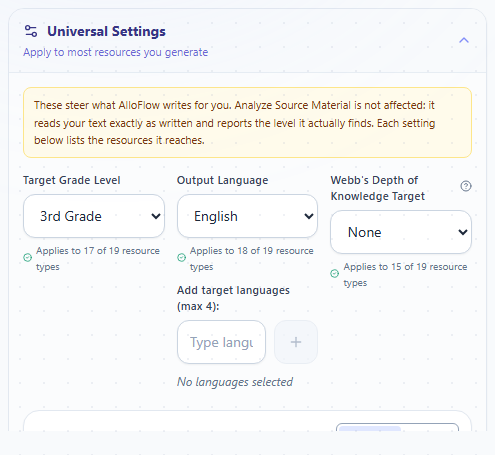
Interface reference captured August 16, 2026 from the public AlloFlow deployment. The note at the top and the "applies to" lines under each control state exactly which resources a setting reaches.
| Setting | What it does | Where you notice it |
|---|---|---|
| Grade level | Sets the reading and complexity target for new resources. | Sentence length, vocabulary, and question difficulty. |
| Output language | Sets the language generated content is written in. | The text students read. |
| Translations | Decides whether a second-language version is attached. | A translation block beside the main content. |
| Standards | Supplies the standard or framework the content should align to. | Quiz items, objectives, and lesson plans. |
| Student interests | Adds a theme or context to examples. | Word problems, scenarios, and prompts. |
| Depth of Knowledge | Sets the level of thinking the task should demand. | Question stems and task verbs. |
| Emoji | Adds emoji as visual cues in generated material. | Glossary terms, headings, and directions. |
| Image style | Sets the lesson-wide visual default for resources that create images. | Visuals, Glossary, Timeline, Concept Sort, Word Sounds, and Adventure when it uses the Universal style. |
Each control tells you how many kinds of resource actually use it. Read that number before you spend time on a setting. Some controls reach almost everything; others reach two or three tools.
Set languages with the controls, not the prompt
For an English resource with Arabic support:
- Add Arabic to the language list in Universal Settings.
- Keep Output language set to English.
- Open the target tool and read its language summary before generating. The Glossary panel, for example, states which languages from the shared list it will include.
That shared language list and the Translations policy are related but not interchangeable. The list supplies languages to tools such as Glossary and to All Selected Languages output. The Translations control governs an additional companion version where that control is relevant; it can remain hidden when its automatic target would duplicate the primary output. Custom Instructions can narrow terms, tone, examples, or format, but they do not add a language to either control. If a language is missing, return to Universal Settings rather than typing “make this bilingual” into the resource prompt.
You can collapse the card once you are done. The summary line stays visible, so you can check your choices without opening the panel again.
The rule that surprises teachers
Universal Settings applies to new work only.
A resource keeps the settings it was built with. If you generate a glossary at grade 3, then change the grade to grade 7, the glossary you already have is still grade 3. Nothing rewrites itself.
So if a pack looks inconsistent:
- Check the summary line for the settings in force now.
- Find the resource that looks wrong.
- Regenerate that resource, or regenerate the pack, so every part shares one setting.
This is worth checking before you conclude a tool got something wrong. A mismatched pack is usually a settings history problem, not a generation problem.
Set image style once unless a resource needs an exception
Use Image style in Universal Settings to keep one lesson visually coherent. Visuals, Glossary, and Word Sounds begin on Use Universal style; their own preset and custom-style controls appear only after you choose Override for this resource. Timeline and Concept Sort use the Universal style directly. Adventure keeps story-specific presets, with Use Universal style available when continuity matters more than a separate story look.
Choose an override for an instructional reason, for example, a simple line-drawing style for a worksheet that must photocopy clearly, not merely because the same selector is visible. Return the resource to Use Universal style when the exception is no longer needed. A change affects new or regenerated images; it does not restyle images that already exist.
Separate the requested grade from internal calibration
The grade you select is the educator-facing target. It is not silently relabeled as a lower instructional grade. For source writing, AlloFlow may use a lower internal prompt target to compensate for a model's tendency to overshoot. The resource still records the grade you requested, the internal calibration target, and, when an English readability check is appropriate, the measured result as separate facts.
That distinction matters:
- Instructional grade identifies the standards and intellectual target.
- Requested text complexity identifies the intended language load for this resource.
- Internal calibration is a generation technique, not a recommendation about what students should read.
- Measured complexity is evidence about the resulting text, not proof that it is instructionally appropriate.
Flesch, Kincaid is an English screening measure based mainly on word and sentence patterns. It cannot judge knowledge demands, text structure, content accuracy, cultural context, or the reader and task. AlloFlow therefore does not show an English grade-level verdict for non-English or bilingual text.
Do this before you share:
- Read a paragraph aloud and listen for sentences a student would lose track of.
- Look for words you would have to stop and define.
- Compare the result against something you know sits at the right grade.
- Use the recorded level check as one signal, then review content, structure, and the actual task.
If an adapted version is used as a companion, leave its role as Supplemental access version and keep the linked primary text available as required by the lesson, standard, and local policy. Designating an adapted version as a primary replacement requires an explicit educator choice; AlloFlow does not infer an IEP, modification, or authorization. Lowering language load is not the same as lowering the learning goal. See Prepare a lesson for how to protect the intellectual target while changing text complexity.
Set the language and decide about translations
Two separate controls do two different jobs.
Output language is the language the resource is written in. If your class works in Spanish, set it to Spanish and the content comes back in Spanish.
Translations decides whether a second version rides along with it. It offers three kinds of answer:
- Automatic attaches a version in the language you set the app interface to, whenever the content is in a different language. This is the default.
- None turns second-language versions off everywhere.
- A named language attaches a version in exactly that language.
A hint line under the control always says in plain words what will happen, such as "Resources in Spanish will also include an English version." You do not have to open the list to know where you stand.
The Translations control appears only when it would do something, or when a previously selected explicit policy needs to remain editable. With Automatic, if the interface and output language match, its automatic target would duplicate the primary content, so the control stays hidden. Adding a language to the shared list can still affect tools such as Glossary even while this companion-translation control is hidden.
Two cautions:
- A translation is generated text. Check it the way you would check any other generated content, especially for subject vocabulary. A word that is correct in general use can be wrong in a science or mathematics context.
- Ask a proficient speaker to read anything a family will receive. A translation that is merely understandable is not the same as one that is respectful and clear.
See the grade-by-language impact before a pack runs
Full Pack and Blueprint freeze the Universal Settings used to prepare their reviewed plan. Their Generation impact summary expands those settings into the actual work that will happen:
| Reviewed setting | Plan effect |
|---|---|
| One target grade and one output language | One version of an eligible resource. |
| A Differentiation Set with three grades | One version at each grade, but only for the resource types selected for differentiation. |
| All Selected Languages with three languages | One version in each language for multilingual resources. Resources that do not fan out by language remain one resource. |
| Three differentiated grades and three output languages | A three-by-three matrix: nine versions for a resource that supports both settings. |
| An exact resource already made from the same source and generation context | Reuse: the existing resource is linked into the run and adds no new AI call. |
Translations and output-language variants are not the same thing. An output-language variant is its own resource version. The Translations policy can attach an additional translation inside each applicable version, and the reviewed plan keeps that policy frozen as part of its context.
Plans also distinguish a purposeful variant from an accidental duplicate. Analyze Source is source-wide and generally appears only once. Repeatable resources, such as quizzes or activities, can appear more than once when their mode or instruction establishes a different purpose. Exact duplicates are suppressed, and new resource types are prioritised ahead of extra variants. Editing a plan row invalidates its old calculation, so the app checks the matrix again before it generates anything.
Changing Universal Settings after a plan is reviewed does not silently change that plan. Refresh or rebuild the plan when you want the newer settings. The review then shows the updated grades, languages, reuse decisions, and call count.
Watch emoji around word activities
Emoji make headings and glossary terms easier to scan for some students. They also carry costs worth knowing about:
- Read-aloud tools may name each emoji out loud, which interrupts the sentence.
- Emoji change how a term looks in letter-based activities such as word scrambles and crosswords.
- Some fonts and older devices cannot display every emoji and show an empty box instead.
Turn emoji on when the visual cue helps and you have previewed the result. Turn them off when the same resource will be printed, read aloud, or used in a spelling or letter puzzle.
A two-minute preflight
Before you generate the first resource for a lesson:
- Set the instructional grade to match the standards and learning target; use an adapted companion when a different language-complexity target is appropriate.
- Set the output language your class will read.
- Check the Translations line and confirm it says what you expect.
- Add a standard only if you will actually use the alignment.
- Add an interest only if it makes the task clearer, not just more decorated.
- Set Depth of Knowledge to the thinking the goal requires.
- Decide about emoji based on how the resource will be used.
- Collapse the card and confirm the summary line matches your intent.
Then generate one resource and read it before making anything else. See Accessibility and UDL for the learner-experience check, and Troubleshooting if a setting does not seem to take effect.